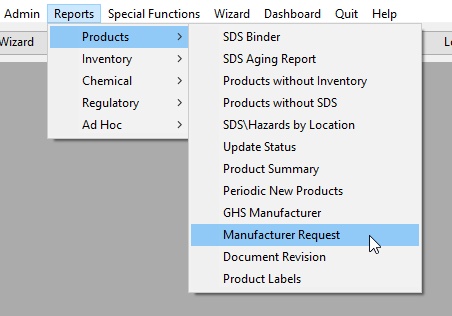
SDSpro allows an administrator to send an e-mail or printed request for updated SDS's to one or more manufacturers simultaneously. This function is known as a Manufacturer Request and it simplifies the process of obtaining new SDS documents from product manufacturers.
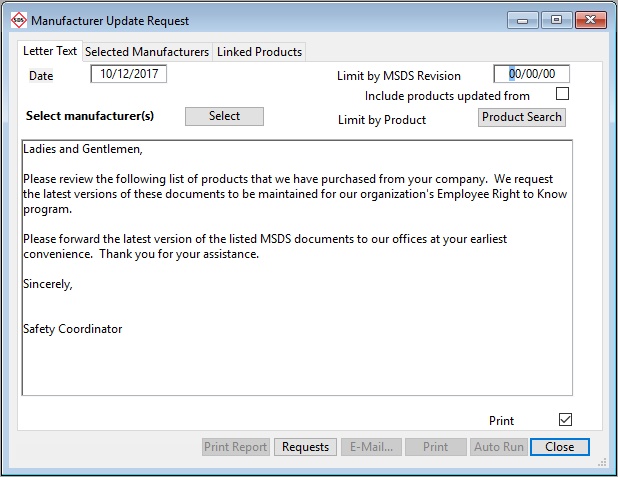
The Date field defaults to the current date.
Check the Include products updated from Internet check box if product records that have already been updated using the Update SDS from Internet function, are to be included in this request.
Limit by Revision Date field - enter a date in this field. Only SDS's containing a Revision Date older than the entry into this field will be requested from the manufacturer.
Click Select to select to which manufacturers a request is to be sent. This will load the Select Company form.
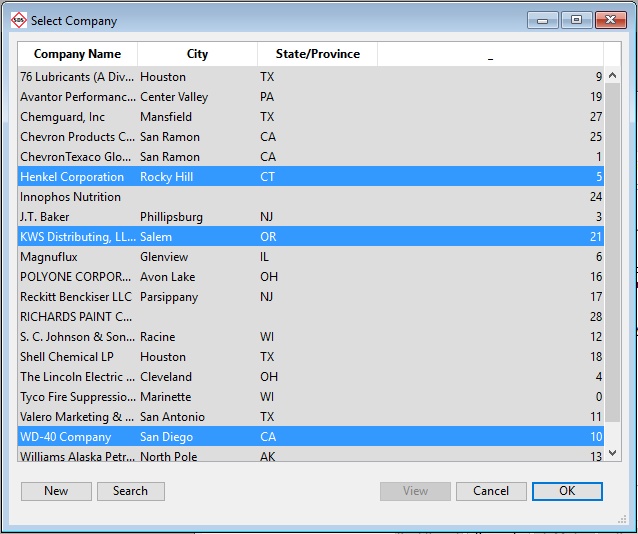
Click on the name of each manufacturer to be included in the Manufacturer Request. Drag the mouse cursor over multiple manufacturers to select several or all of them.
Choose the Manufacturers you wish to review. Click OK.
Click on the Linked Products tab to view the products to be requested from the manufacturer(s).
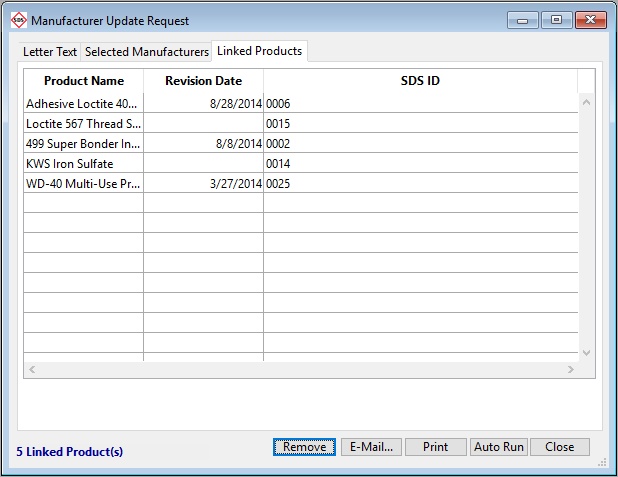
Click Remove to remove any highlighted products not to be included in the request(s).
Click E-Mail or Print to either E-mail the request(s) to the Manufacturer(s) or Print out the request(s) for regular mailing.
Once the request has been either e-mailed or printed, click Close to close the Manufacturer Update Request Entry form.
E-mailing a Manufacturer Request
Clicking on the E-MAIL button on the Manufacturer Update Request Entry form loads the Send E-Mail Message Entry form.
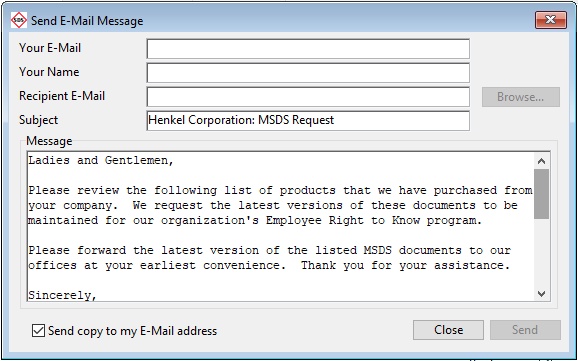
Enter the contact information for the SDSpro Administrator into the Your E-Mail and Your Name fields.
Enter the e-mail address(es) of the manufacturer(s) to which this request is to be sent into the Recipient E-mail field.
Modify the Subject and Message fields as desired.
Check the Send copy to my E-Mail address check box to send a copy of the request to the SDSpro administrator listed in the form.
Click Send to send the request or Close to close the Send E-Mail Message Entry form.